


Wondering why you're running out of mobile data before the end of the month? The culprit may not be your phone plan—it could be the apps you use every day. From streaming video to social media and cloud backups, some iPhone apps consume far more mobile data than most people realize.
In this article, we'll explain which iPhone apps use the most mobile data, why they consume so much, and what you can do to reduce usage without giving up your favorite apps.
TL;DR: Which iPhone Apps Use the Most Data?
The biggest mobile data users on iPhone are typically:
- Video streaming apps (YouTube, Netflix, Disney+, Hulu)
- Social media apps (TikTok, Instagram, Facebook)
- Video calling apps (FaceTime, Zoom)
- Music streaming apps (Spotify, Apple Music)
- Navigation apps (Apple Maps, Google Maps, Waze)
- Cloud storage and photo backup (iCloud Photos, Google Photos)
- App Store downloads and automatic updates
- Gaming apps with online multiplayer
If you're constantly running out of data, lowering video quality, enabling Wi-Fi-only backups, and downloading content before you leave home can dramatically reduce your monthly usage.
How to Check Which Apps Use the Most Mobile Data on iPhone
Before making any changes, it's helpful to see exactly where your data is going.
On your iPhone: Settings → Cellular (or Mobile Service)
Scroll down to see every installed app along with the amount of mobile data it has used since the last reset.
This screen makes it easy to identify unexpected data hogs.
If you notice an app you've barely used consuming gigabytes of data, it's worth investigating its settings.
1. Video Streaming Apps
Video streaming is by far the largest source of mobile data usage.
Common apps include:
- YouTube
- Netflix
- Disney+
- Hulu
- Max
- Amazon Prime Video
Streaming high-definition video can use several gigabytes of data in just a few hours.
How to Reduce Data Usage
- Download movies before traveling.
- Stream over Wi-Fi whenever possible.
- Lower video quality from HD or 4K to Standard Definition.
- Disable autoplay where available.
2. Social Media Apps
TikTok
TikTok is one of the fastest-growing sources of mobile data consumption.
Because videos automatically begin playing—and users often scroll continuously—it can consume data surprisingly quickly.
Tips to Save Data
- Enable TikTok's Data Saver mode.
- Limit usage while on cellular.
- Watch longer sessions over Wi-Fi.
- Reels
- Stories
- Videos
- Live streams
- High-resolution images
All of these require significant bandwidth.
Reduce Instagram Data Usage
Go to: Instagram → Settings → Data Usage
Enable: Use Less Cellular Data (or Data Saver)
Also avoid uploading videos unless connected to Wi-Fi.
Although Facebook often appears to be mostly text and photos, it automatically loads:
- Videos
- Stories
- Live streams
- Suggested content
Autoplay video is usually the biggest culprit.
Reduce Data Usage
Disable autoplay on cellular connections.
Facebook also offers data-saving settings within the app.
3. FaceTime and Video Calling Apps
Video calls consume much more data than traditional voice calls.
Popular apps include:
- FaceTime
- Zoom
- Google Meet
- Microsoft Teams
High-definition video calls can use hundreds of megabytes per hour.
Save Data
Whenever possible:
- Connect to Wi-Fi.
- Turn off HD video if available.
- Use audio-only calls when video isn't necessary.
4. Music Streaming Apps
Apps like:
- Spotify
- Apple Music
- Pandora
typically use much less data than video—but daily streaming still adds up.
Save Data
- Download playlists over Wi-Fi.
- Choose Normal quality instead of High or Lossless while using cellular.
Most listeners won't notice a significant difference in audio quality.
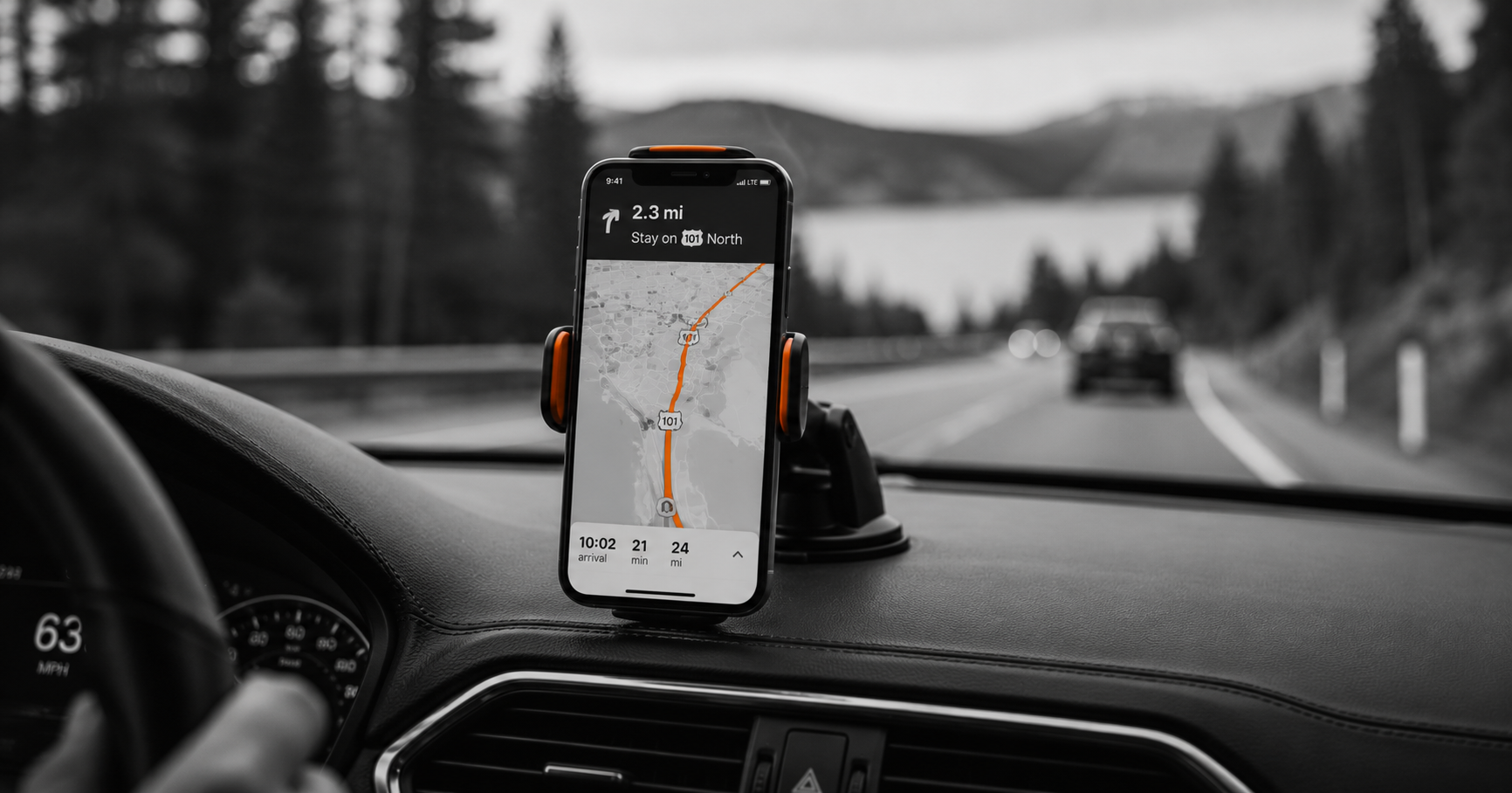
5. Maps and Navigation Apps
Navigation apps constantly download:
- Maps
- Traffic updates
- Alternate routes
- Business information
Popular apps include:
- Apple Maps
- Google Maps
- Waze
Save Data
Download offline maps before long trips whenever possible.
Although navigation doesn't use nearly as much data as streaming video, frequent travelers can still benefit from offline downloads.
6. iCloud Photos and Cloud Backup
Many people don't realize cloud syncing can occur over cellular.
Large uploads include:
- Photos
- Videos
- Device backups
These uploads can quickly consume gigabytes.
Reduce Data Usage
Go to: Settings → Photos
Disable:
- Cellular Data
- Unlimited Updates
You can also configure iCloud to sync only while connected to Wi-Fi.
7. App Store Downloads and Updates
Large games and apps can exceed several gigabytes.
Automatic downloads over cellular may use far more data than expected.
Save Data
Go to: Settings → App Store
Disable automatic downloads over cellular.
8. Online Games
Modern games frequently download:
- Updates
- Maps
- Skins
- Voice chat
- Multiplayer data
Popular titles like Call of Duty Mobile, PUBG Mobile, Roblox, and Fortnite can consume substantial data over time.
Gaming is even more data-intensive when updates occur over cellular.
10 Ways to Reduce Mobile Data Usage on iPhone
If you're approaching your monthly data limit, try these tips:
1. Use Wi-Fi Whenever Possible
Connect at:
- Home
- Work
- School
- Coffee shops
- Hotels
2. Turn Off Cellular Access for Apps You Rarely Use
Go to: Settings → Cellular
Toggle off apps that don't need mobile access.
3. Disable Background App Refresh
Many apps update themselves even when you're not actively using them. Turning off Background App Refresh reduces unnecessary data transfers.
4. Download Content Before Leaving Home
Download:
- Music
- Podcasts
- Movies
- TV shows
- Maps
before traveling.
5. Lower Streaming Quality
HD isn't always necessary on a smartphone screen. Reducing video quality can significantly extend your monthly data allowance.
6. Disable Automatic App Updates
Large software downloads should occur over Wi-Fi.
7. Use Low Data Mode
iPhone includes a built-in feature called Low Data Mode.
Enable it under: Settings → Cellular → Cellular Data Options
8. Reset Your Cellular Usage Statistics Monthly
This helps you understand trends over time.
9. Watch for Cloud Backups
Large photo libraries often consume more data than expected.
10. Choose a Phone Plan That Matches Your Usage
Sometimes your usage habits simply require more monthly data. If you're unsure how much data you actually need, read our guide on How to Choose the Right Cell Phone Plan in 2026.
Take Control of Your Mobile Data Usage
Running out of data every month doesn't necessarily mean you need a bigger phone plan.
Understanding which apps use the most mobile data—and making a few simple changes—can help you get more from your current plan while avoiding unnecessary overage or slowdowns.
If you're still deciding how much data is right for you, check out our Complete Guide to Choosing the Right Cell Phone Plan. And if you're thinking about switching providers, learn How to Switch Phone Carriers Without Losing Your Number to make the process quick and stress-free.
At Flex Mobile, we offer flexible plans designed for every type of smartphone user—from light data users to unlimited streaming. Explore our plans today and find the one that fits your lifestyle.
Share:
What Is an MVNO? Why It's Usually Cheaper (Without Sacrificing Coverage)
Which Android Apps Use the Most Data? 10 Tips to Use Less